
Let’s be honest: our iPhones are usually the first thing we look at in the morning and the last thing we check before bed. While it’s easy to view our devices as sources of distraction or stress, hidden within that sleek glass rectangle is a sophisticated wellness coach waiting to be utilized. Apple has spent years refining the Health app and its integration with iOS, moving far beyond simple step counting into holistic health management.
Whether you are trying to establish a better sleep schedule, keep track of vitamins, or just want to understand your anxiety triggers, your iPhone has built-in tools to help—no expensive third-party subscriptions required. By tweaking a few settings and engaging with the Health app regularly, you can transform your device from a passive screen into an active partner in your well-being journey. Let’s dive into the most impactful features you should be using right now.
Master Your Circadian Rhythm with Sleep Schedules
We all know we need more sleep, but "trying harder" rarely works. The key to better rest is consistency, and the iOS Sleep features are designed to enforce exactly that. Unlike a standard alarm clock, the Sleep Focus and Schedule features work backward from your wake-up time to help you prepare for bed, not just jolt you awake.
The magic ingredient here is "Wind Down." When you set up a sleep schedule, you can choose a window of time before bed where your phone automatically reduces distractions. It dims the screen, silences notifications, and can even trigger shortcuts to apps like Headspace or Apple Music for calming playlists. It creates a digital boundary that signals to your brain that the day is over.
Here is how to set up a comprehensive sleep routine:
- Open the Health app and tap on the Browse tab.
- Select Sleep and scroll down to Your Schedule.
- Tap Full Schedule & Options.
- Set your Sleep Goal (e.g., 8 hours) and customize your Wind Down period (30 to 60 minutes is ideal).
Pro Tip: Pay attention to the "Haptics" settings in your alarm. You can set your iPhone to wake you up with a gentle vibration pattern rather than a loud noise. If you wear an Apple Watch to bed, it will tap your wrist silently, waking you up without disturbing your partner.
Never Miss a Dose with Medications
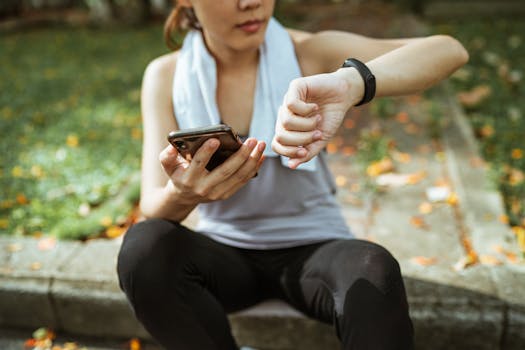
Managing prescriptions, vitamins, and supplements can be a mental load we don’t realize we are carrying until we put it down. Did I take my Vitamin D this morning? Did I finish that course of antibiotics? The Medications feature in iOS is a game-changer for anyone who takes anything from a daily multivitamin to critical heart medication.
This feature does more than just ping you with a reminder. It allows you to log the shape and color of the pill (rendering a cute, realistic icon), helping you identify what you are taking. More importantly, it offers interaction warnings. If you add a new medication that might react negatively with one you are already taking—or even with alcohol or caffeine—the Health app can alert you.
Setting this up is incredibly satisfying and takes the guesswork out of your pharmacy routine:
- Go to Health > Browse > Medications.
- Tap Add a Medication.
- Use the camera icon to scan the label on your bottle (it is surprisingly accurate), or type the name manually.
- Set your frequency and the time of day you want the reminder.
Once set up, these reminders will appear on your Lock Screen. You can mark them as "Taken" with a single tap, creating a log history you can share with your doctor later.
Prioritize Mental Wellbeing with State of Mind
Physical health is easy to track because it is quantifiable—steps, calories, heart rate. Mental health is often more nebulous. However, Apple’s "State of Mind" feature attempts to quantify the qualitative. It encourages you to log your momentary emotions and daily moods to identify patterns over time.
This isn't about writing a "Dear Diary" entry (though you can add notes). It is about taking ten seconds to identify how you feel. The interface is beautiful and intuitive; you slide a geometric shape along a spectrum from "Very Unpleasant" to "Very Pleasant." The background color shifts from heavy purples to bright oranges, offering immediate visual feedback.
After selecting your mood, the app asks you why you feel that way (e.g., family, work, money) and descriptive words (e.g., anxious, grateful, drained). Over a month, you might realize that your "drained" moods always correlate with poor sleep nights or specific work meetings.
Wellness Note: Consistency is key here. Try to log your state of mind at the same time every day, or whenever you feel a strong shift in emotion. You can even set reminders in the Health app to nudge you to check in with yourself twice a day.
Protect Your Long-Term Mobility with Walking Steadiness
We usually associate fall risks with the elderly, but mobility issues can creep up on anyone due to injury, footwear choices, or muscle imbalances. Your iPhone is quietly measuring your gait quality while it sits in your pocket or purse. This feature is called Walking Steadiness.
Using built-in motion sensors, your iPhone analyzes your walking speed, step length, and double-support time (how long both feet are on the ground). It combines these metrics to classify your steadiness as OK, Low, or Very Low. A "Low" score indicates you are at an increased risk of falling in the next 12 months.
Why does this matter for a general wellness routine? Because a decline in walking steadiness is often an early warning sign of other issues, such as fatigue, inner ear problems, or declining core strength. Seeing a trend line go down can be the motivation you need to start yoga, strength training, or simply walking more intentionally.
To check your status:
- Open Health > Browse > Mobility.
- Look for Walking Steadiness.
- Scroll down to see Exercises that May Help, which includes videos for strengthening your core and legs.
Safeguard Your Senses with Headphone Safety
In our world of noise-canceling headphones and constant podcasts, our ears are under constant assault. Hearing damage is cumulative and often irreversible. Apple has built-in features to protect your hearing health without forcing you to give up your favorite tunes.
The Health app tracks your Headphone Audio Levels. It categorizes your listening habits based on World Health Organization standards. For example, listening at 80 decibels (about the volume of city traffic) is safe for up to 40 hours a week, but 90 decibels is only safe for 4 hours a week.
You can automate protection so you don't have to constantly monitor the volume slider:
- Go to your iPhone Settings app (not the Health app for this one).
- Tap Sounds & Haptics > Headphone Safety.
- Toggle on Reduce Loud Sounds.
- Use the slider to set a maximum decibel level (75 or 80 decibels is a safe bet). Your phone will automatically soften any sounds that spike above this limit.
Did You Know? If you use an Apple Watch, the Noise app can also measure ambient sound levels in your environment (like a loud concert or construction site) and tap you on the wrist when you should step away or put in earplugs.
Integrating these features doesn't require a massive lifestyle overhaul. It simply requires a few minutes of setup and the willingness to let your iPhone support you. By offloading the mental energy of remembering pills, tracking sleep, or worrying about hearing loss to your device, you free up mental space to focus on living your life. Start with one feature today, and watch how small data points can lead to big changes in how you feel.